

Match the button to the real process
A website button makes a promise about what happens next. “Call to enquire” means a conversation, while “Book now” can imply a reservation process. Choose the label that reflects how the business actually operates. For an adult business website, this is especially useful when visitors need to confirm details privately. Do not add a reservation form just because it makes the design look complete. Start with the contact method that someone will actually monitor.
Use the shared phone configuration
If telephone enquiries are the main channel, enter the real business number in the shared site information. NSFWON’s configured contact actions can use that number across hero buttons, service sections, and the footer. Check both the visible text and the destination offered by the device. A placeholder is suitable for an unfinished draft, not for a launch-ready contact route. Avoid keeping separate copies of the number in different components, where one can become outdated after an edit.
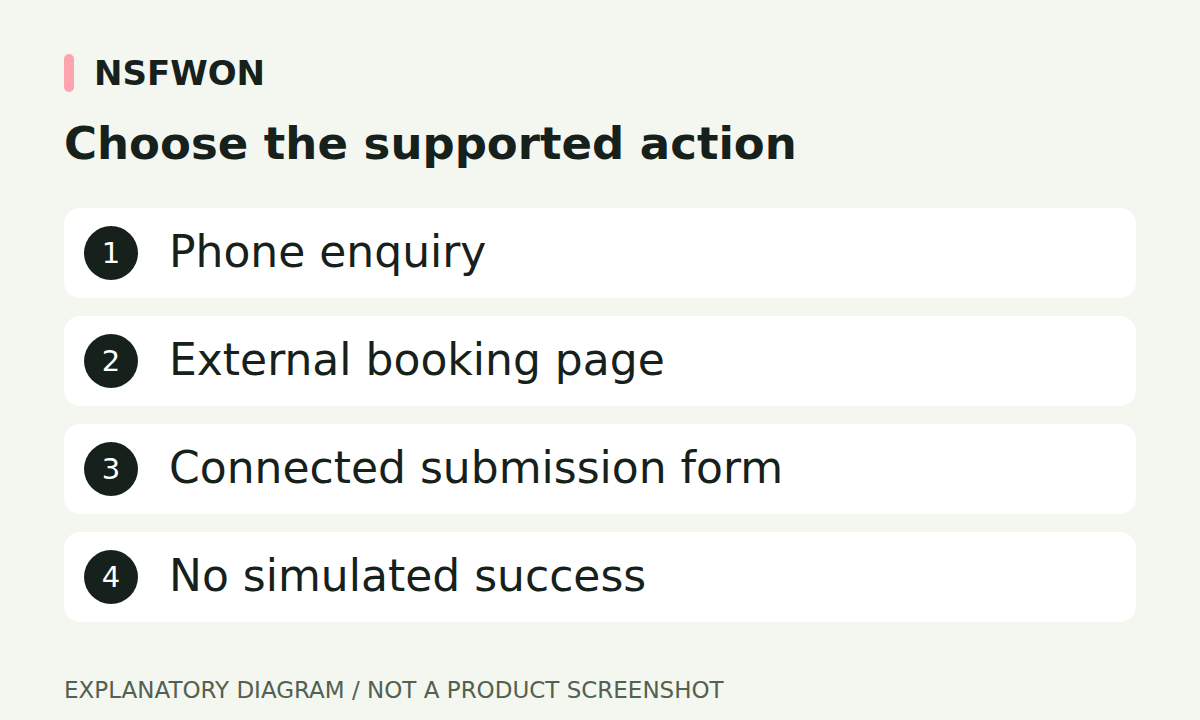
Illustration: Choose the supported action. This diagram explains the workflow; it is not a product screenshot.
Connect external booking destinations deliberately
If you already use an external booking or enquiry service, supply its exact public URL and select the appropriate contact mode. Confirm that the destination belongs to the intended business and works on a phone. A generic #booking link only moves to a section with that ID; it does not create a booking capability. An external page should be described accurately, particularly when the visitor is leaving the current website to complete the next step.
Treat a form as a data workflow
A working form needs more than inputs and a success message. It needs a real submission destination, server-side processing, failure handling, and a way for the business to retrieve the enquiry. Collect only information needed for the stated purpose and explain how it will be used. Before launch, send a test message and verify its arrival in the actual receiving system. If that path is not connected, use a phone or established external contact method instead of simulated success.
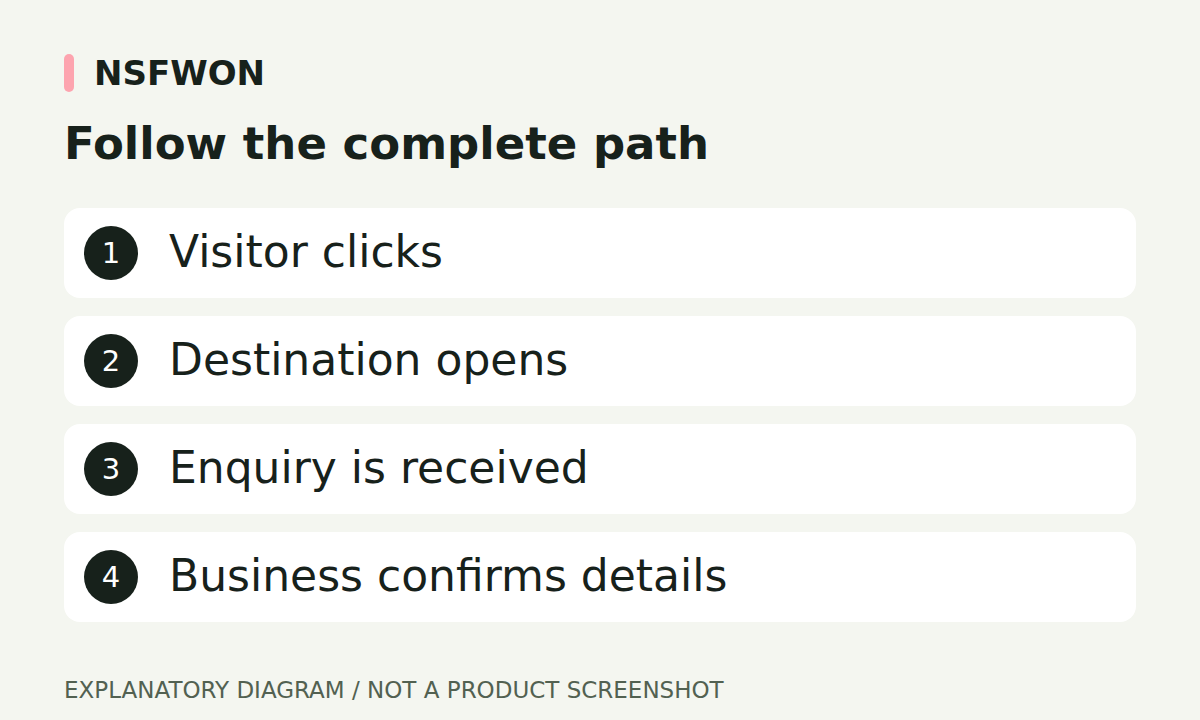
Illustration: Follow the complete path. This diagram explains the workflow; it is not a product screenshot.
Make the wording consistent across sections
A hero, a service card, and a floating contact button can all lead to the same enquiry method while using labels suited to their context. Keep their meaning consistent. “Ask about this service” is a better label than “Reservation confirmed” when availability still requires a conversation. Do not claim that a service-specific button sends a selected package unless that information is genuinely passed to the destination. Check that descriptive text and functionality agree after any visual-editor change.
Run a contact test before every important update
Test the hero action, each service action, the footer, and the mobile menu. Confirm that the number or URL is correct and that controls remain accessible above any floating panel. For a connected form, test both a successful submission and an error case; a missing field or network problem should not display false success. Publish the update and repeat the main test on the public URL. Keep the receiving channel staffed according to the response information you actually display.
Continue with NSFWON
Open NSFWON, review the current plans, or contact support. Read the related guide: SEO for Adult Business Websites: Clear Content and Accurate Search Information.