

Start with the visitor’s task
An AI website builder works best when it knows what a visitor needs to accomplish. A bakery may want customers to find opening hours and call about an order. A software business may need to explain a product and send visitors to a signup page. Before opening NSFWON, write down the audience, the main service, and one primary action. This gives the first draft a useful direction instead of a collection of unrelated sections.
Write a brief with facts and boundaries
Try a prompt such as: “Create a mobile-friendly website for Cedar Bakery in Bristol. Use warm colors, show four editable gallery images, describe our bread and pastries, and direct enquiries to the phone number I provide. Leave unknown opening hours and prices out.” Include your real business name, approved images, contact details, and preferred tone. Clearly identify sample information. Do not expect AI to know an address, price, qualification, or customer review that you have not supplied.
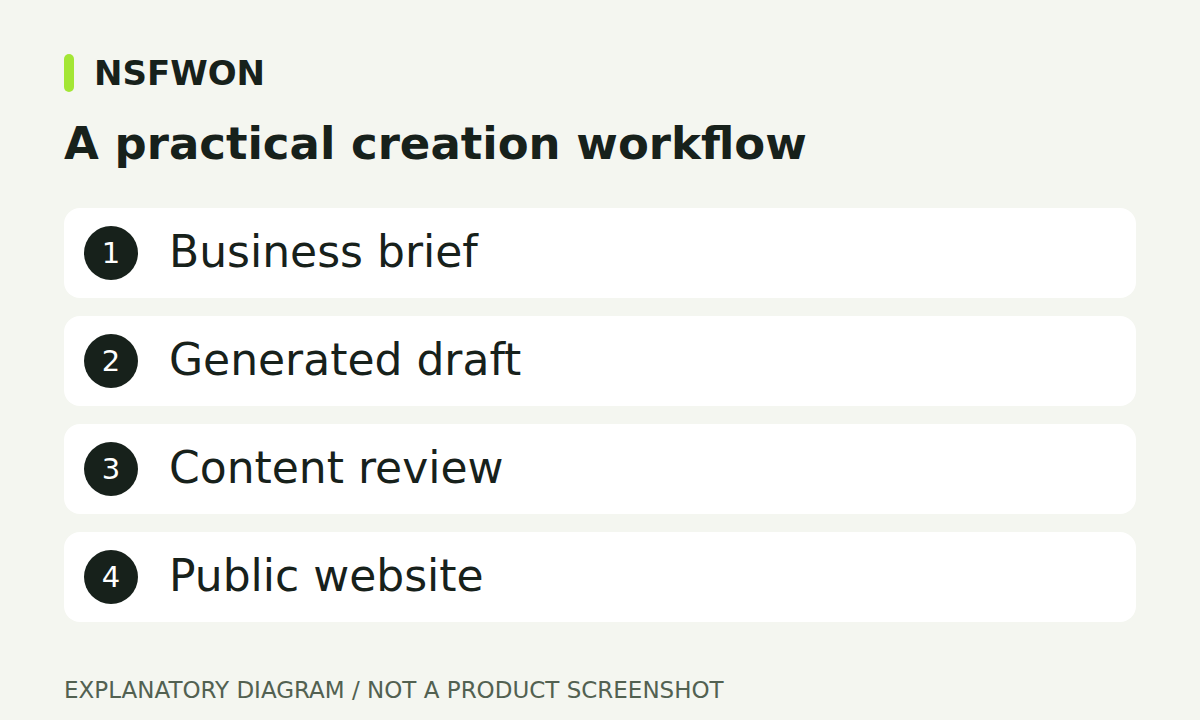
Illustration: A practical creation workflow. This diagram explains the workflow; it is not a product screenshot.
Use reference websites with a clear purpose
If you have a reference URL, say what should carry over: section order, color palette, photography style, or navigation. Also say what must change. NSFWON can collect public page information and use it as design evidence, but a reference is not a guaranteed pixel-for-pixel import. Private booking systems, accounts, and payments do not transfer simply because their buttons are visible. Use your own branding and assets, and describe unavailable features honestly.
Review the generated site before polishing
Check the first draft as a customer would. Can you identify the business, understand its offer, and find the next step without searching? Read service descriptions, prices, contact details, and FAQ answers. Replace sample claims before publication. A technically valid site can still contain inaccurate copy or an awkward layout. Look at the whole page first, then request specific changes such as shortening the mobile headline or making the gallery captions clearer.
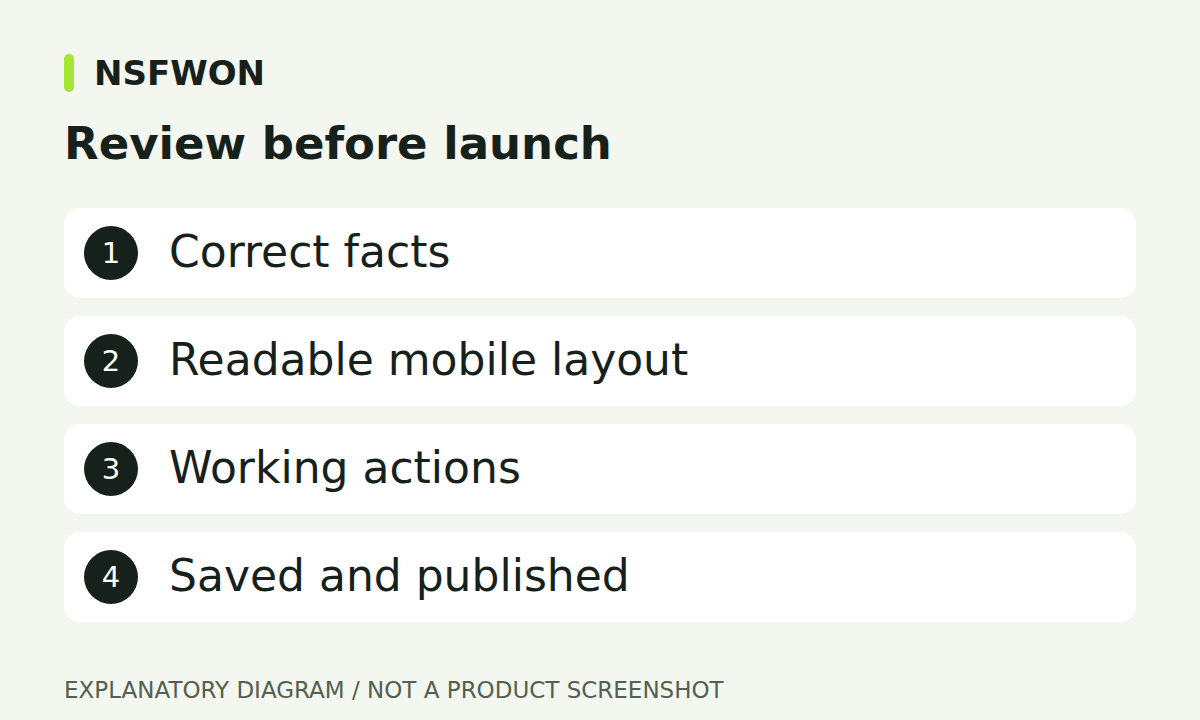
Illustration: Review before launch. This diagram explains the workflow; it is not a product screenshot.
Edit small details and test the result
Use the visual editor for supported text, image, and link changes. Select the actual text or image instead of a decorative wrapper. For a larger layout change, give the AI a focused request and identify the section. Test the header, menu, hero buttons, gallery, and footer on both a narrow mobile screen and desktop. A working preview is an opportunity to review content; it is not evidence that every form has a connected backend.
Publish and verify the public address
Save your changes and use Publish to build the public version. Open the resulting address in a separate browser tab and check it again. Later edits may require another publish or update before visitors can see them. Add page-specific search and sharing information, then test the main call to action on a phone. Keep a short launch checklist so future updates receive the same review rather than relying on how the page looked in the editor.
Continue with NSFWON
Open NSFWON, review the current plans, or contact support. Read the related guide: How to Edit Website Images, Logos, and Text in NSFWON.