

Decide whether the content is local or shared
Before changing an element, ask whether it appears once or throughout the site. A gallery caption belongs to one image. A company logo or main phone number may be shared by the header, footer, and contact buttons. NSFWON uses shared business information for these repeated fields. Updating the shared value helps avoid a new logo in the header with an old identity in the footer. Review all affected locations after saving.
Replace a photo from your computer
Select the image you want to change and use the image replacement action to choose a JPEG, PNG, or WebP file. Supported direct image edits show a preview and save through the editor; wait for the save result before moving on. Large photos may be compressed. Use an image you are entitled to publish, keep the subject away from the crop edges, and check both landscape and narrow layouts. Never judge the final crop from the original file alone.
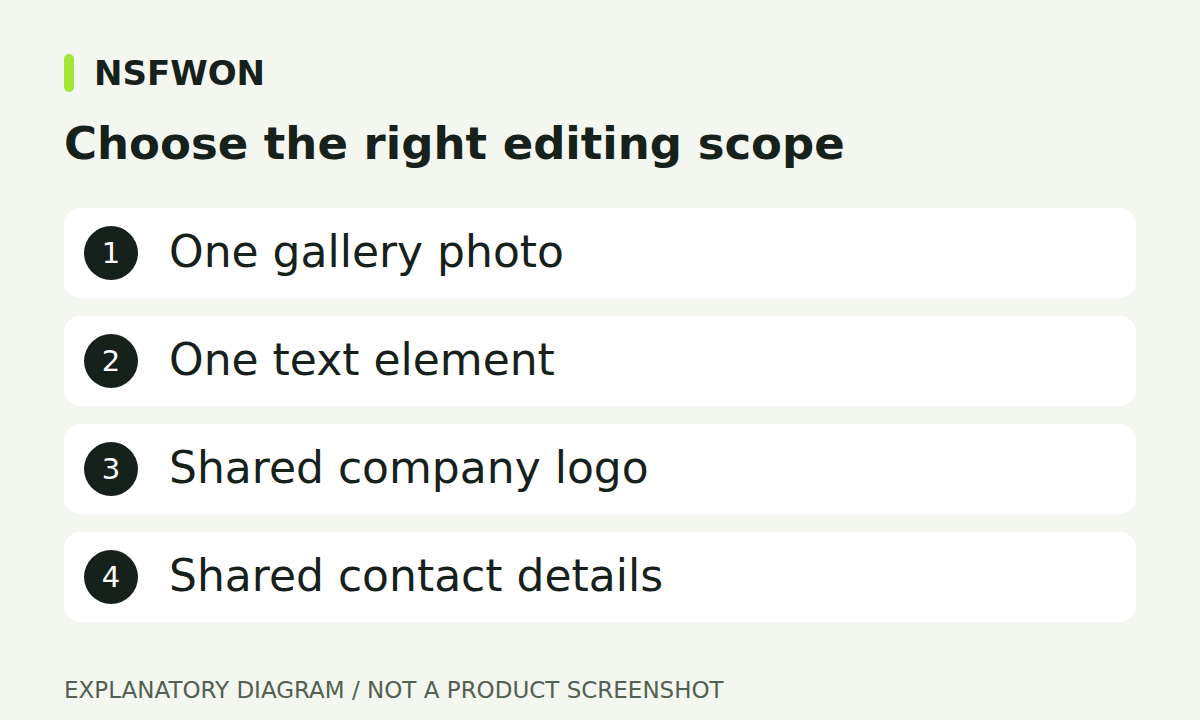
Illustration: Choose the right editing scope. This diagram explains the workflow; it is not a product screenshot.
Use one clear brand in the header
A wordmark already contains the business name, while a standalone symbol may need an adjacent text label. Avoid showing a wordmark and the same long name twice. Choose the logo replacement action for a shared logo so the header, footer, and favicon use the same brand asset. A very wide logo can become hard to read as a tiny browser icon. Prefer a simple, legible identity and inspect its small-size appearance rather than assuming the large version will work everywhere.
Edit the right text element
For headings, paragraphs, service descriptions, and FAQ questions, select the specific text element. A section wrapper may expose styling controls without exposing its child text. Shared names and phone numbers can update multiple places at once. If the editor cannot safely locate a source element, use a precise AI instruction instead of repeatedly saving an unsupported selection. Ask to change the wording in the named section while preserving its layout and existing behavior.
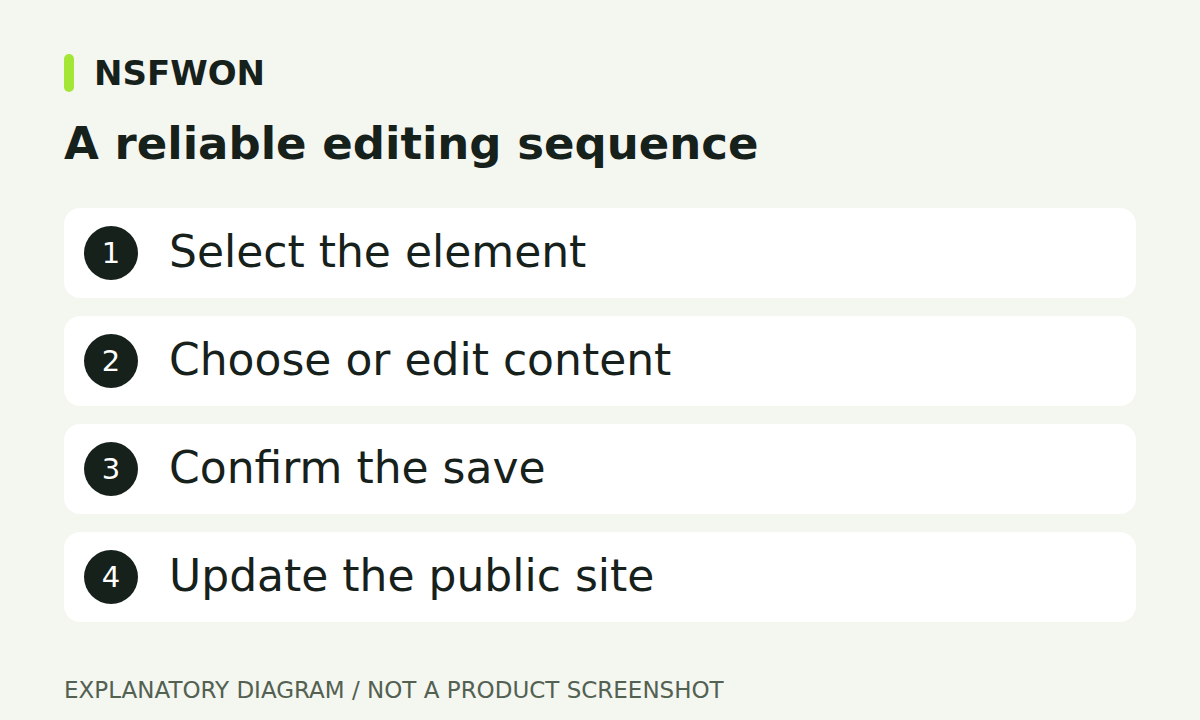
Illustration: A reliable editing sequence. This diagram explains the workflow; it is not a product screenshot.
Check links separately from their labels
Changing a button label does not necessarily change its destination. A normal link has a URL; a shared contact action follows the configured phone or external booking address. Some buttons run JavaScript, such as opening a menu or expanding an answer. Preserve that behavior unless you intend to replace it. After editing, activate the control in preview and on the published site. For telephone actions, verify the actual number offered by the device, not just the visible label.
Finish with save, review, and publish
Wait for a successful save message and check the updated page before publishing. Where available, undo can help reverse an accidental direct edit; it is still useful to record important copy before a large change. Reopen the project to confirm the content remains saved, then update the published version. Check image descriptions as well: alt text should explain meaningful visual content, while decorative images do not need a repeated marketing slogan. Review header and footer branding together.
Continue with NSFWON
Open NSFWON, review the current plans, or contact support. Read the related guide: Publishing Your NSFWON Website and Connecting a Domain.