

Preview and publication serve different purposes
Your workspace preview lets you inspect and edit a project. The published address serves the built version intended for visitors. These are related, but they are not the same saved state. If a change looks correct in the editor but is missing from the public site, first confirm that it was saved and included in a successful publish or update. Do not assume that sharing a workspace URL is the same as sharing a finished website.
Choose the project’s public address
An NSFWON subdomain provides a public address for a published project without requiring you to configure the platform’s wildcard server infrastructure. Available address choices depend on your account and plan. Pick a name that fits the business and check it carefully before the first publication. NSFWON preserves the initially published subdomain for the project; updating the site is different from repeatedly assigning new subdomain names to the same project.
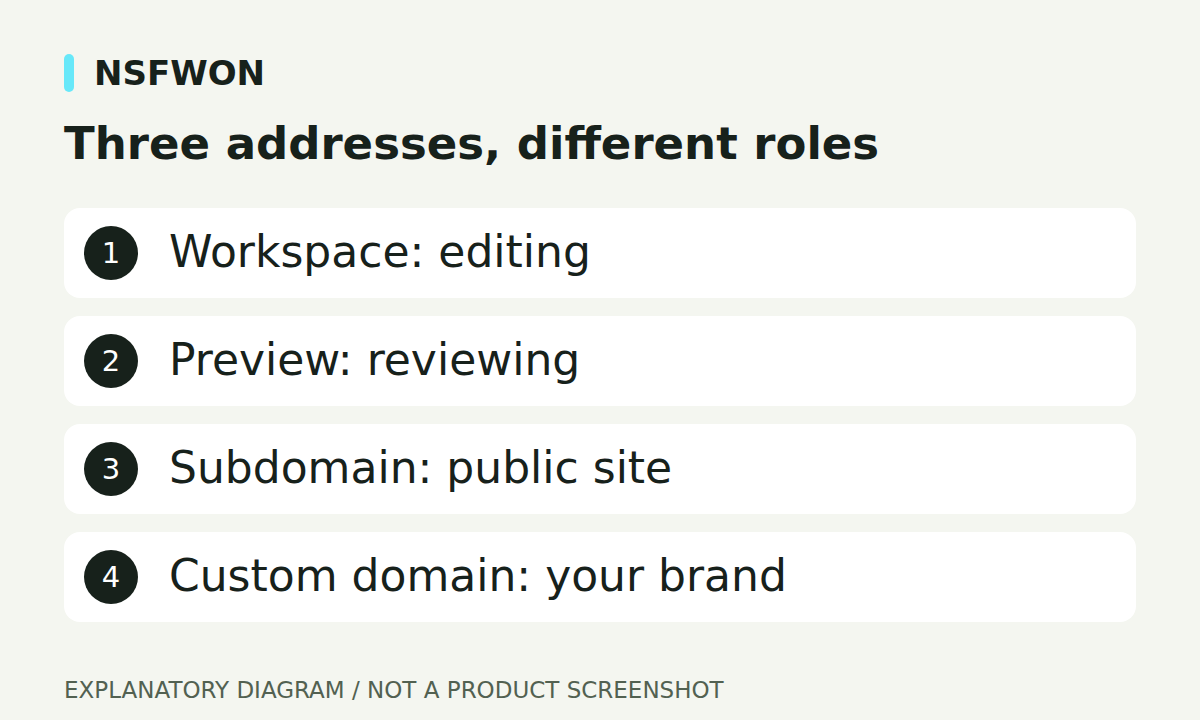
Illustration: Three addresses, different roles. This diagram explains the workflow; it is not a product screenshot.
Treat a custom domain as a separate setup step
A custom domain uses an address you control, such as your company’s own domain. When the option is available, enter it in the existing publish flow and follow the verification and DNS instructions shown there. Use those instructions as the source of truth rather than a generic record copied from another hosting provider. Registering a domain, pointing it to a service, and verifying ownership are different steps. Their timing can vary, so avoid promising that every change is immediate.
Check the exact hostname you intend to share
Decide whether the representative address uses the bare domain or a www hostname. Verify the address that visitors will actually enter. Your page metadata should use the intended public address, not a workspace preview link or a development host. If verification fails, recheck the spelling, the requested DNS values, and the published status before changing unrelated settings. Keep any error message available when contacting support so the failing step can be identified.
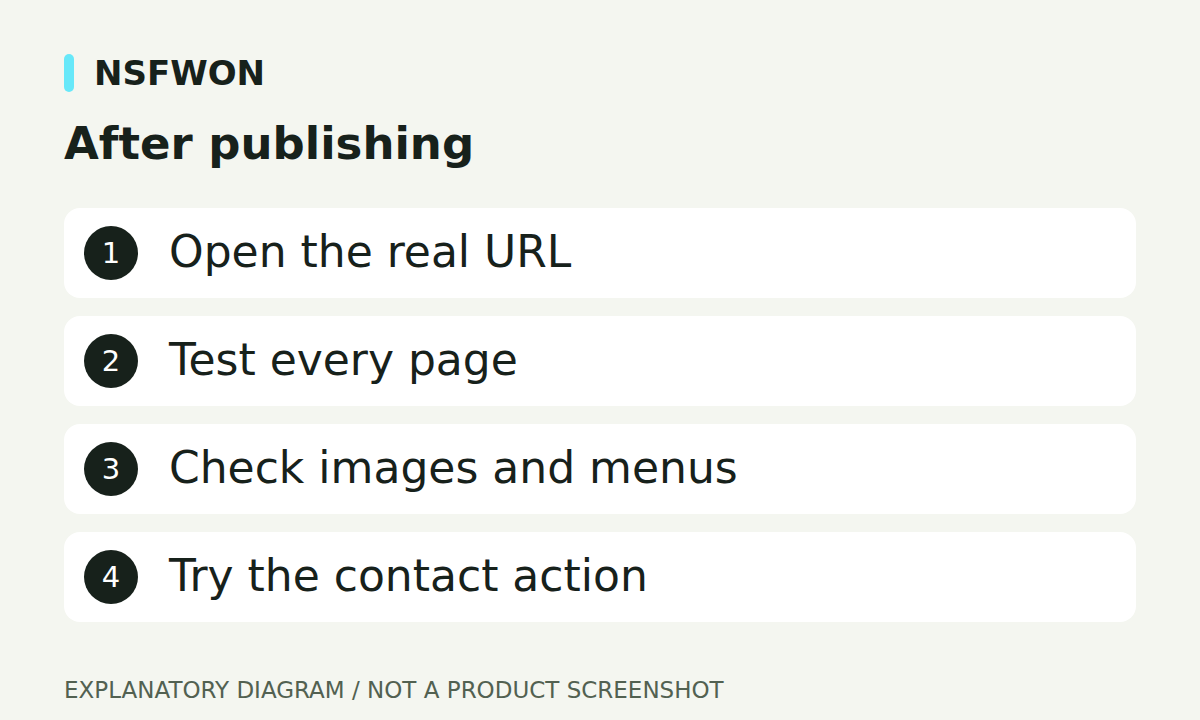
Illustration: After publishing. This diagram explains the workflow; it is not a product screenshot.
Test the published website as a visitor
Open the public URL outside the editor, preferably in a private tab. Check the home page, each real internal page, the mobile menu, images, and contact actions. A successful home page does not prove that every link works. Confirm that anchor links reach a visible section and that a booking button has a real destination. If a form exists, verify its actual submission path and where the message can be retrieved before relying on it for customer enquiries.
Keep future updates on a repeatable path
Use the same sequence for later changes: edit, save, review, publish, and verify. Recheck the public title and sharing image after changes to the brand or domain. A social platform may retain an earlier preview even when the page has been updated, so inspect the page itself before assuming the publish failed. Keep domain ownership and account access documented. For plan limits and available domain options, consult the current pricing page rather than relying on an old tutorial.
Continue with NSFWON
Open NSFWON, review the current plans, or contact support. Read the related guide: Website SEO in NSFWON: Titles, Descriptions, and OG Images.